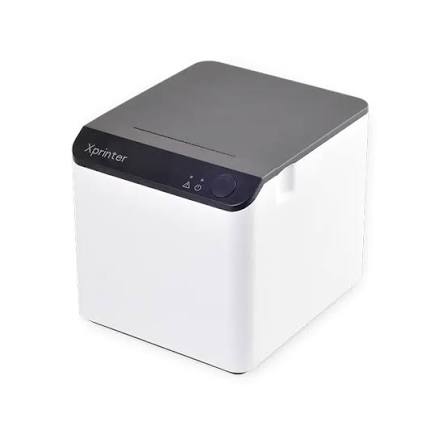
Receipt printers are used continuously in many business environments, including retail stores, restaurants, supermarkets, and service centers. These devices help businesses produce transaction records, customer bills, and order information. However, frequent use can lead to dust accumulation, paper residue, worn components, and other issues that affect printing quality and overall performance.
Regular maintenance helps keep an Xprinter Receipt Printer operating consistently with a compatible point-of-sale (POS) system. By following appropriate cleaning procedures, using suitable paper, checking connections, and identifying problems early, businesses can reduce unnecessary interruptions and support reliable daily printing operations.
1. Clean the Print Head Regularly
The print head is one of the most important components of a thermal receipt printer. It generates heat to create text and images on specially coated paper. Over time, dust, paper particles, and other residue can accumulate on its surface.
A dirty print head may cause faded text, missing lines, or uneven printing. Regular cleaning helps maintain consistent output.
Before cleaning, turn off the printer and allow the print head to cool if it has been operating. Follow the manufacturer’s instructions and use an approved cleaning material. Avoid sharp objects, excessive pressure, or unsuitable chemicals that could damage the component.
2. Keep the Paper Path Free From Dust
The paper path guides the receipt roll through the printer during operation. Dust, torn paper fragments, and other debris can interfere with paper movement and cause feeding problems.
Open the paper compartment according to the product instructions and inspect accessible areas. Remove loose particles using an appropriate cleaning method.
Do not use excessive force when removing trapped paper. Keeping the paper path clean can help prevent jams and support smoother printing.
3. Use Compatible Receipt Paper
Paper quality directly affects receipt appearance and printer performance. Thermal printers require specially coated paper that reacts to heat, while impact printers use suitable paper and ribbon arrangements.
Using incorrect paper dimensions or unsuitable materials may result in feeding errors, poor print quality, or unnecessary wear.
Before purchasing supplies, check the printer’s specifications for:
- Supported paper width.
- Maximum roll diameter.
- Required paper type.
- Paper thickness or other specified dimensions.
- Recommended storage conditions.
Using compatible paper helps maintain consistent results and reduces avoidable operating problems.
4. Install Paper Rolls Correctly
Incorrect paper installation is a common cause of blank receipts and paper-feeding issues. In thermal printers, the coated side of the paper must face the print head.
When replacing a roll, open the compartment and remove the empty core. Place the new roll in the correct direction, pull out a small section of paper, and close the cover securely.
Print a test receipt to confirm that the paper feeds correctly and the information appears clearly. Employees should learn the correct loading procedure to avoid repeated mistakes.
5. Inspect Power Cables and Connections
Stable power and communication connections are necessary for dependable printing. Loose cables, damaged connectors, and unstable network connections may cause unexpected interruptions.
Check the power adapter, USB cable, Ethernet connection, or wireless configuration according to the printer model.
Avoid pulling cables directly from their wires or placing them where they can be bent, crushed, or exposed to moisture. Replace damaged cables with compatible alternatives that meet the manufacturer’s requirements.
6. Keep Drivers and POS Software Updated
Receipt printers rely on software and drivers to communicate with computers and POS systems. Outdated or incompatible drivers may cause printing delays, incorrect formatting, or connection problems.
Periodically check for compatible driver updates and review the manufacturer’s installation instructions. Before updating, confirm that the new software supports the operating system and POS application being used.
It is also useful to keep a record of the current printer settings so that configurations can be restored if necessary.
7. Check the Automatic Cutter
Some receipt printers include an automatic cutter that separates printed receipts. Paper fragments, dirt, or mechanical wear can affect its operation.
If receipts are not separating correctly, switch off the printer and inspect the accessible cutter area according to the manufacturer’s instructions. Remove visible paper residue without forcing the mechanism.
Avoid using sharp tools or manually moving internal cutter components unless the product documentation specifically permits it. Persistent problems may require professional servicing.
8. Monitor Print Quality and Device Indicators
Regularly checking printed receipts can help identify early signs of maintenance problems. Faded text, missing characters, uneven lines, and inconsistent paper feeding may indicate that cleaning or inspection is necessary.
Pay attention to status lights, warning indicators, and error messages. These signals can help employees identify conditions such as low paper, an open cover, or a connection problem.
Addressing minor issues early can prevent them from becoming larger operational disruptions.
9. Maintain Proper Operating Conditions
Environmental conditions can influence printer performance. Excessive heat, moisture, dust, and direct sunlight may affect paper quality and electronic components.
Place the printer on a stable, clean surface with sufficient ventilation. Keep liquids away from the device and avoid positioning it near equipment that produces excessive heat.
For businesses operating in dusty environments, more frequent inspection and cleaning may be necessary.
10. Establish a Regular Maintenance Schedule
A structured maintenance routine makes it easier to keep receipt printers in suitable working condition. The cleaning frequency should depend on printing volume, operating conditions, and manufacturer recommendations.
A practical maintenance checklist can include:
| Maintenance Task | Recommended Action |
|---|---|
| Print head | Clean according to manufacturer instructions |
| Paper path | Inspect and remove accumulated debris |
| Paper rolls | Check compatibility and condition |
| Power cables | Inspect for damage and loose connections |
| Printer drivers | Review compatible software updates |
| Print quality | Test for faded or uneven output |
| Automatic cutter | Inspect when cutting problems occur |
| Operating environment | Keep the workstation clean and ventilated |
High-volume businesses may need more frequent inspections than locations with occasional printing requirements.
Common Maintenance Mistakes to Avoid
Incorrect cleaning methods can cause more damage than ordinary dirt accumulation. Employees should avoid using excessive liquid, abrasive materials, sharp tools, or unauthorized cleaning products.
Another common mistake is continuing to operate a printer when it repeatedly jams or produces unusual noises. Such symptoms may indicate a mechanical problem that needs inspection.
Businesses should also avoid using incompatible paper and power adapters. Following the manufacturer’s technical instructions is the safest approach to routine maintenance.
When Professional Servicing Is Necessary
Some problems cannot be resolved through regular cleaning and basic troubleshooting. Persistent power failures, damaged print heads, repeated cutter malfunctions, and suspected internal electrical faults may require qualified technical support.
Before requesting assistance, record the printer model, error indicators, connection type, and symptoms. This information can help technicians identify the problem more efficiently.
Conclusion
Proper maintenance is essential for keeping receipt printers reliable in everyday business environments. Cleaning the print head, maintaining the paper path, using compatible supplies, checking connections, and updating supported drivers can help prevent common printing problems.
By establishing a consistent maintenance schedule and following manufacturer recommendations, businesses can support better printing performance, reduce avoidable downtime, and maintain smoother POS operations.