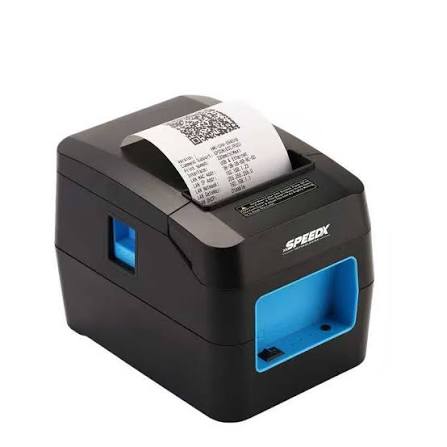
Thermal printers are essential tools in many business environments, including retail stores, restaurants, warehouses, healthcare facilities, and logistics operations. They are used to produce receipts, product labels, shipping documents, and other important records. Because these devices often operate throughout the working day, regular maintenance is necessary to preserve print quality, reduce unexpected interruptions, and extend equipment service life.
A Thermal Printer uses heat to create text, images, and barcodes on compatible printing materials. Although its printing mechanism is relatively simple, components such as the printhead, rollers, sensors, and paper-feeding system require proper care. Following a consistent maintenance routine helps businesses maintain dependable printing performance and avoid unnecessary repair expenses.
1. Clean the Printhead Regularly
The printhead is one of the most important components of a thermal printer. It contains small heating elements that produce text and images by applying controlled heat to the printing material.
Over time, dust, paper particles, and adhesive residue can accumulate on the printhead surface. This buildup may cause faded printing, missing lines, or inconsistent output.
To maintain the printhead:
- Turn off the printer and disconnect the power supply.
- Allow the printhead to cool if the printer has been operating.
- Open the printer according to the manufacturer’s instructions.
- Use an approved cleaning pen or lint-free cloth with the recommended cleaning solution.
- Allow the cleaned area to dry completely before using the printer again.
Avoid touching the heating elements directly with your fingers or using sharp objects to remove residue. Cleaning frequency should depend on printing volume and the manufacturer’s recommendations.
2. Use High-Quality Compatible Thermal Paper
The quality of printing media has a direct impact on output consistency and component condition. Low-quality or incompatible thermal paper may produce faded text, excessive paper dust, uneven printing, or feeding difficulties.
Businesses should choose paper that matches the printer’s specifications. Important factors include paper width, roll diameter, thickness, and thermal coating quality.
For direct thermal printing, the heat-sensitive coating must be compatible with the printer’s printhead. Using appropriate paper helps produce clear receipts while reducing unnecessary wear.
Retailers and other high-volume users should also purchase media from dependable suppliers to maintain consistent results across replacement rolls.
3. Keep the Paper Path Free From Dust and Debris
Dust and paper fragments can collect inside the printer during regular operation. If they accumulate around the feeding mechanism, they may interfere with paper movement or affect print quality.
A clean paper path allows the media to move smoothly through the printer.
Follow these maintenance practices:
- Switch off the printer before cleaning.
- Open the accessible paper compartment.
- Remove loose paper fragments and visible dust.
- Clean accessible surfaces using manufacturer-approved materials.
- Check that no debris remains near the rollers or sensors.
Compressed air should only be used when permitted by the manufacturer because improper use can push debris deeper into the equipment.
4. Inspect and Maintain the Platen Roller
The platen roller is responsible for supporting and moving the printing material beneath the thermal printhead. Its condition influences paper feeding and print consistency.
A dirty, worn, or damaged roller may cause uneven printing, paper slipping, wrinkles, or repeated feeding problems.
During routine maintenance, check the roller for:
- Dust and adhesive buildup
- Surface cracks or visible damage
- Uneven wear
- Paper residue
- Irregular movement
Clean the roller according to the manufacturer’s instructions. If it becomes damaged or excessively worn, replacement may be necessary.
5. Load Paper Correctly
Incorrect paper installation is a common reason for blank receipts, paper jams, and feeding errors. Even a well-maintained printer may not work correctly when the media is loaded improperly.
Before installing a new roll, check that it has the correct dimensions and that the thermal-sensitive side faces the printhead.
Make sure the roll is positioned properly and that the paper feeds freely through the mechanism. Close the printer cover securely before starting a new print job.
For label printers, confirm that labels are aligned correctly and that the media type matches the selected sensor settings.
6. Maintain Proper Print Density Settings
Print density, sometimes called darkness, controls how much heat is applied during printing. Incorrect settings can affect both output quality and printhead performance.
If the density is too low, receipts and labels may appear faded. Excessively high settings can increase heat exposure and may contribute to faster printhead wear.
Businesses should select a density level that produces clear output without applying unnecessary heat.
When adjusting settings, print a sample and examine small text, graphics, and barcodes. The ideal configuration may vary depending on media quality, printing speed, and the specific printer model.
7. Check the Printer’s Sensors
Thermal printers may use sensors to detect paper presence, label gaps, black marks, or other media features. These components help the printer position content accurately and identify when a roll needs replacement.
Dust or adhesive residue on a sensor can interfere with media detection and cause printing errors.
If labels stop at incorrect positions or the printer reports an empty roll when media is available, inspect the accessible sensors.
Clean them only with suitable materials and follow the manufacturer’s instructions. Label printers may also require calibration after changing media types or sizes.
8. Avoid Overloading the Printer
Every printer is designed to operate within certain performance limits. Using equipment beyond its recommended workload can increase component wear and lead to more frequent maintenance requirements.
Businesses with high transaction volumes should review the manufacturer’s recommended duty cycle, print speed, printhead life, and cutter specifications.
If printing demand increases significantly, consider whether the current model still provides sufficient capacity.
Choosing a printer designed for the expected workload can help reduce interruptions and support consistent performance.
9. Protect the Printer From Heat, Moisture, and Dust
The surrounding environment can influence printer reliability. Excessive heat, moisture, and airborne dust may affect electronic components, printing media, and mechanical parts.
Place the printer in a clean, dry location with suitable ventilation. Avoid positioning it directly beside heaters, cooking equipment, or other sources of excessive heat.
For retail counters and warehouse workstations, make sure the printer is protected from accidental liquid spills and unnecessary physical impact.
Always follow the manufacturer’s specified operating temperature and humidity ranges.
10. Inspect Power Cables and Data Connections
Stable power and communication connections are necessary for reliable printing. Loose cables or damaged connectors can cause unexpected shutdowns, interrupted jobs, and connectivity problems.
During routine inspections, check the power adapter, USB cable, Ethernet connection, or wireless configuration as applicable.
Make sure the power supply matches the printer’s required specifications. Avoid using damaged adapters or cables, and do not place heavy objects on connection wires.
For network-connected models, confirm that the printer remains connected to the correct network and that its communication settings are configured properly.
11. Keep Printer Drivers and Firmware Updated
Software configuration can affect printing performance just as much as physical maintenance. Outdated drivers or incompatible software may cause formatting errors, communication failures, or unexpected printer behavior.
Businesses should periodically check for official driver and firmware updates.
Before installing an update:
- Confirm that it supports the exact printer model.
- Check operating system compatibility.
- Follow the manufacturer’s installation instructions.
- Avoid interrupting firmware installation.
- Keep a record of important configuration settings.
Updates should come from official manufacturer sources to reduce the risk of installing unsuitable or unsafe software.
12. Clean the Automatic Cutter
Some thermal receipt printers include an automatic cutter that separates printed receipts after each transaction. This component can collect paper fragments and may become less reliable over time.
If the cutter begins producing incomplete cuts or making unusual noises, inspect the accessible area according to the user manual.
Never force the cutter or attempt to remove an obstruction while the printer is operating. If the blade is damaged or remains stuck, contact a qualified technician.
Regular inspection is particularly important for businesses that print large numbers of receipts each day.
13. Store Thermal Paper Properly
Thermal paper is sensitive to environmental conditions, even before it is loaded into the printer. Improper storage may affect its coating and reduce print quality.
To preserve unused rolls:
- Keep them in a cool and dry location.
- Avoid direct sunlight and ultraviolet exposure.
- Store them away from excessive heat.
- Protect them from moisture and chemical contact.
- Follow the paper manufacturer’s storage recommendations.
Proper storage helps maintain consistent output and reduces the likelihood of faded or uneven printing.
14. Establish a Preventive Maintenance Schedule
A planned maintenance routine makes it easier to identify small problems before they affect daily operations. Businesses should create a schedule based on printing volume, operating conditions, and manufacturer recommendations.
A simple maintenance plan can include:
| Maintenance task | Suggested frequency |
|---|---|
| Check paper loading and condition | Whenever replacing a roll |
| Inspect print quality | Daily or during routine checks |
| Clean printhead | According to usage and manufacturer guidance |
| Inspect paper path and rollers | Weekly or as needed |
| Check cables and connections | Monthly |
| Review drivers and firmware | Periodically |
| Inspect cutter and sensors | During scheduled maintenance |
These intervals are general guidelines. High-volume environments may require more frequent cleaning and inspection.
15. Recognize Signs That Professional Servicing Is Needed
Regular cleaning and basic maintenance can prevent many common problems, but some issues require professional attention.
Consider contacting the manufacturer or a qualified technician if:
- Printing remains faded after cleaning and media replacement.
- The printhead has visible damage.
- Paper feeding problems continue despite correct loading.
- The cutter repeatedly fails or becomes stuck.
- The printer makes persistent grinding or clicking noises.
- Power or connectivity problems cannot be resolved through basic checks.
Attempting to repair internal electrical or mechanical components without the appropriate knowledge may cause further damage or affect warranty coverage.
Benefits of Proper Thermal Printer Maintenance
A consistent maintenance routine provides several operational advantages.
More consistent print quality: Cleaning the printhead and using compatible media helps maintain clear text and readable barcodes.
Reduced downtime: Regular inspections can identify problems before they interrupt business activities.
Longer equipment service life: Proper care helps reduce unnecessary wear on important components.
Better operating cost control: Preventive maintenance may reduce avoidable repair expenses and premature replacements.
Improved workflow efficiency: Reliable printing supports smoother checkout, labeling, inventory, and shipping operations.
Conclusion
Maintaining a thermal printer involves more than replacing paper rolls. Regular printhead cleaning, compatible media selection, roller inspection, sensor care, and proper software configuration all contribute to consistent printing performance.
Businesses should also protect their equipment from unsuitable environmental conditions and follow a preventive maintenance schedule based on actual usage. By addressing small issues early and seeking professional support when necessary, organizations can reduce printing interruptions, preserve equipment condition, and support reliable daily operations.